
We may earn money or products from the companies mentioned in this post.
You wrote the SOP. You built the help doc. You spent hours getting the process documented and now it sits in a shared Google Drive folder that nobody opens.
This is one of the most common and quietly expensive problems for SMBs. Your staff is inconsistently trained. New hires ask the same questions over and over. Customer success suffers because your team never properly absorbed the process you wrote down. The content exists it’s just in the wrong format.
Video changes that. Research suggests employees retain up to 95% of information presented via video, compared to roughly 10% from text alone. And for customer onboarding, video has been shown to reduce time-to-value and cut support ticket volume meaningfully. The problem has never been whether video works it’s that producing it traditionally required a camera crew, a studio booking, a video editor, and two to three weeks of back-and-forth.
That barrier is now gone. Tools like Synthesia let you convert your existing written documentation into a polished, presenter-led training video in roughly 10 minutes, starting from scratch.
Here’s exactly how to do it.
Ready to skip the manual and just try it? Synthesia offers a free plan no camera or studio required. Free plan includes 10 minutes of video/month · No credit card required. Try Synthesia Free → https://www.synthesia.io/?via=theaioutlier
95% – Information retained via video vs. 10% from text
60K+ – Businesses using Synthesia as of 2026
63× – Potential cost reduction vs. traditional video production
Why Training Videos Outperform Written Docs
Written SOPs and help docs have one fundamental problem: they require active effort from the reader. Your staff member has to sit down, read through a multi-step process, visualise what they’re doing, and remember it all at the same time. Most don’t. They skim, get stuck, and either ask a colleague or wing it.
Video is passive in the best way. Your team member presses play, watches a clearly narrated walkthrough, and can pause or rewind at will. The information goes in with far less cognitive friction. And for multi-step processes think software onboarding, compliance workflows, customer escalation procedures the difference in comprehension and retention is significant.
For SMBs without a dedicated L&D team, video training also creates consistency at scale. Whether you’re onboarding your 2nd hire or your 22nd, every person watches the exact same presentation, delivered in the exact same way. That’s something even your best trainer can’t guarantee on a busy Monday morning.
The core insight
You don’t need to create new content. Your best training material probably already exists it’s just in a document that isn’t engaging. This tutorial is about converting what you already have.
What You Need Before You Start
This workflow requires two things:
1. Your existing support doc or SOP. This could be a Google Doc, a Word file, a Notion page, a Confluence article any written procedure or how-to guide. Ideally 300-600 words (which produces a clean 3-5 minute video). If yours is longer, we’ll talk about how to scope it below.
2. A Synthesia account. Synthesia offers a free Basic plan that includes approximately 3 minutes of video per month (360 credits), with access to 9 AI avatars and the core editor enough to test the workflow. The paid Starter plan runs $18-$29/month (depending on annual or monthly billing) and unlocks 10 minutes of video, 125+ avatars, and watermark-free downloads. The Creator plan at $53-$89/month expands to 30 minutes/month and adds features like multiple avatars per scene and API access.
For most SMBs testing this for the first time, the free plan or Starter is the right entry point.
Start with Synthesia’s free plan no studio, no camera, no commitment. Get Started Free → https://www.synthesia.io/?via=theaioutlier
Step 1 – Paste Your Support Doc into Synthesia’s Script Editor
Step 01 of 04
Convert your doc into a video script
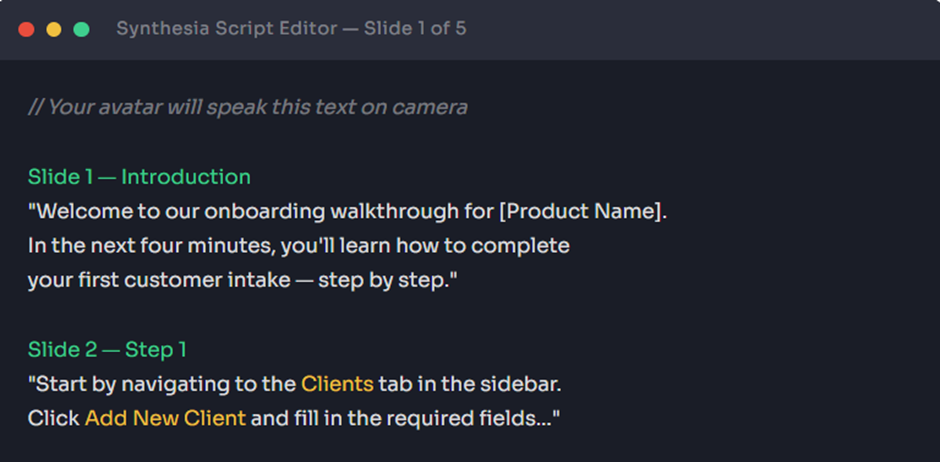
Once inside Synthesia, click Create Video and choose a template (or start from blank). You’ll land in the script editor this is where your written doc becomes a video script.
Paste your support document text directly into the script panel. Synthesia’s editor works slide-by-slide, similar to PowerPoint. Each slide holds the text your AI avatar will speak on screen. A good rule of thumb: one key step or concept per slide.
If your original doc is long, now is the time to edit for brevity. Remove filler language, convert passive voice to active, and break large paragraphs into clear numbered steps. The AI avatar reads exactly what you write clear, conversational writing produces much better output than dense technical prose.
Step 2 – Choose an AI Avatar and Voice That Fits Your Brand Tone
Step 02 of 04
Pick your on-screen presenter
Synthesia’s paid plans offer access to 125-240+ pre-built AI avatars, covering a wide range of ages, ethnicities, and professional presentation styles. Select one that fits the tone of your training something polished and approachable for customer-facing onboarding, or more technical for internal IT walkthroughs.
Next, choose a voice. Synthesia supports over 160 languages and voice styles, including regional accents. If your team is multilingual, this is where the platform becomes particularly powerful the same script can be dubbed into multiple languages without re-recording anything.
Test a short preview before committing. Listen for pacing and tone. Synthesia allows you to adjust reading speed and add manual pauses using punctuation a comma produces a short beat; a period adds a full pause. This small detail dramatically improves the feel of the final output.
Step 3 – Add Slides, Screen Recordings, or Visuals to Support the Script
Step 03 of 04
Support your script with visuals
A talking-head avatar alone is functional, but adding context makes the video substantially more useful for training. Synthesia’s editor lets you:
Upload images or screenshots – drag in a screenshot of your CRM, your intake form, or your dashboard and it appears alongside the avatar as a visual reference.
Add screen recording clips – if you record a short screen capture of the process (even using your phone or a free tool like Loom), you can embed it into specific slides. This is especially effective for software walkthroughs where seeing the actual clicks matters.
Use Synthesia’s built-in media library – stock visuals, shapes, and branded text overlays are available within the editor to supplement your slides.
For a support doc conversion, even a few well-placed screenshots will significantly increase comprehension. Think of it as the visual equivalent of bolding key terms in a written doc.
Synthesia also now supports enhanced PowerPoint import – if your SOP lives in a deck, you can upload it and the platform will convert speaker notes into scripts and retain your slide design as a starting point.
Step 4 – Review, Adjust Pacing, and Export
Step 04 of 04
Preview, refine, and generate your video
Before generating your final video, use Synthesia’s preview mode to play back each slide. Check for:
- Awkward phrasing that sounds fine written but odd when spoken aloud
- Slides that feel too dense (more than 30-40 seconds on one point loses attention)
- Avatar lip-sync on key technical terms (proper nouns sometimes benefit from phonetic spelling in the script)
Once satisfied, click Generate Video. Render time varies by length but typically runs 2-5 minutes for a standard 3-5 minute training video. You can download the final MP4 on paid plans or share a direct link useful for embedding into your LMS, Notion wiki, onboarding portal, or sending via Slack.
Before vs. After: What This Actually Changes
| Scenario | Written SOP Only | Synthesia Training Video |
| Time to produce | Already written (but ignored) | ~10 min to convert existing doc |
| Staff completion rate | Low – skimming is common | Significantly higher for video format |
| Consistency across hires | Varies by reader and trainer | Identical for every new hire |
| Updates when process changes | Edit the doc (still ignored) | Update script, regenerate in minutes |
| Multi-language support | Requires manual translation | AI dubbing into 160+ languages |
| Cost vs. traditional video | – | Up to 63× cheaper than studio production |
Real-World Example: A Software Company’s Onboarding Walkthrough
Illustrative Example
From 14-page onboarding doc to a 4-minute video
Consider a SaaS company with a 14-page customer onboarding guide covering account setup, integration steps, and common error troubleshooting. The doc existed, but the customer success team found that new clients rarely read it fully leading to repeated support calls on questions the doc already answered.
What they converted: The three most commonly misunderstood sections account setup, connecting their first integration, and resetting API credentials were each condensed into a single-slide script block (around 80 words each) and turned into three short videos of 60-90 seconds each.
The result: Each video was embedded directly into the onboarding email sequence at the relevant step. Customers received a link to the exact video they needed at the moment they needed it rather than a link to a 14-page PDF. Support queries on those three topics dropped noticeably within the first 30 days.
Time to produce all three videos: Under 40 minutes, including script editing and avatar selection. No camera. No editor. No studio.
See how fast you can turn one of your own SOPs into a training video.Try Synthesia Free →https://www.synthesia.io/?via=theaioutlier
Tips for Keeping Training Videos Under 5 Minutes
Attention drops sharply after the 5-minute mark in non-interactive video. For training purposes, shorter and more targeted almost always outperforms longer and comprehensive. Here’s how to stay tight:
1 – One process per video. Don’t try to cover an entire onboarding programme in one video. Break it into topic-specific modules of 2-4 minutes each. This also makes it easier to update individual sections without re-doing everything.
2 – Lead with the outcome, not the background. Open with what the viewer will be able to do by the end, not a history of why the process exists. “By the end of this video, you’ll know how to…” beats a 90-second preamble every time.
3 – Write for ears, not eyes. When you paste your doc into Synthesia’s editor, rewrite passive constructions. “The form should be completed by the user” becomes “Fill in the form.” Every word the avatar speaks costs pacing make each one count.
4 – Use visuals to replace words. If you’re explaining a 4-step interface, a screenshot or screen clip does the work of 60 words of description. Let the avatar set context and let the visual carry the detail.
5 – End with a single next action. “Your next step is to log into the dashboard and complete the setup checklist.” One clear instruction. No list of five things. Viewers act on one thing at a time.
Conclusion: Your Docs Are Already the Script
The biggest misconception about training video production is that it requires starting from scratch. It doesn’t. If you’ve already written an SOP, a help doc, a process guide, or a customer onboarding walkthrough you’ve done most of the work.
Synthesia turns that investment into something your team will actually watch, retain, and act on. It removes every traditional barrier to video production: no camera, no studio, no editing timeline, no per-video production cost that makes iteration feel expensive. You can update a training video the same afternoon the process changes.
For SMB owners managing lean teams, inconsistent onboarding is one of the highest-cost invisible problems in the business. Training videos produced quickly, from content you already own are one of the most practical fixes available in 2026.
Start turning your support docs into training videos today. Synthesia’s free plan requires no camera, no credit card, and no video editing skills. Get Started with Synthesia Free → https://www.synthesia.io/?via=theaioutlier
Paid plans from $18/month (annual) · 160+ languages · 125+ AI avatars
Affiliate Disclosure: The AI Outlier participates in affiliate programmes including Synthesia’s partner programme. If you sign up through links in this article, we may receive a commission. This does not affect our editorial position. We research tools independently and only feature products we consider genuinely useful for SMB owners. Data points in this article are sourced from Synthesia’s official pricing page, third-party review platforms, and published research as of May 2026.